From an AI prompt to a 3D print: ChatGPT, Claude and STL files
A phone holder at exactly the right angle. A vase that fits your shelf. A cup holder shaped around your favourite cup. AI gives you another way to describe what you want to make - and start turning it into something you can hold.
I have been exploring this with character models, using WALL-E as the example in my latest Applied AI video. But the more interesting possibility is making the small, specific things that you cannot quite find in a shop.
Take a few measurements, add them to a clear brief and work through the result. The exciting part is the room for creativity: you can start with the thing you actually want, rather than the closest available product.
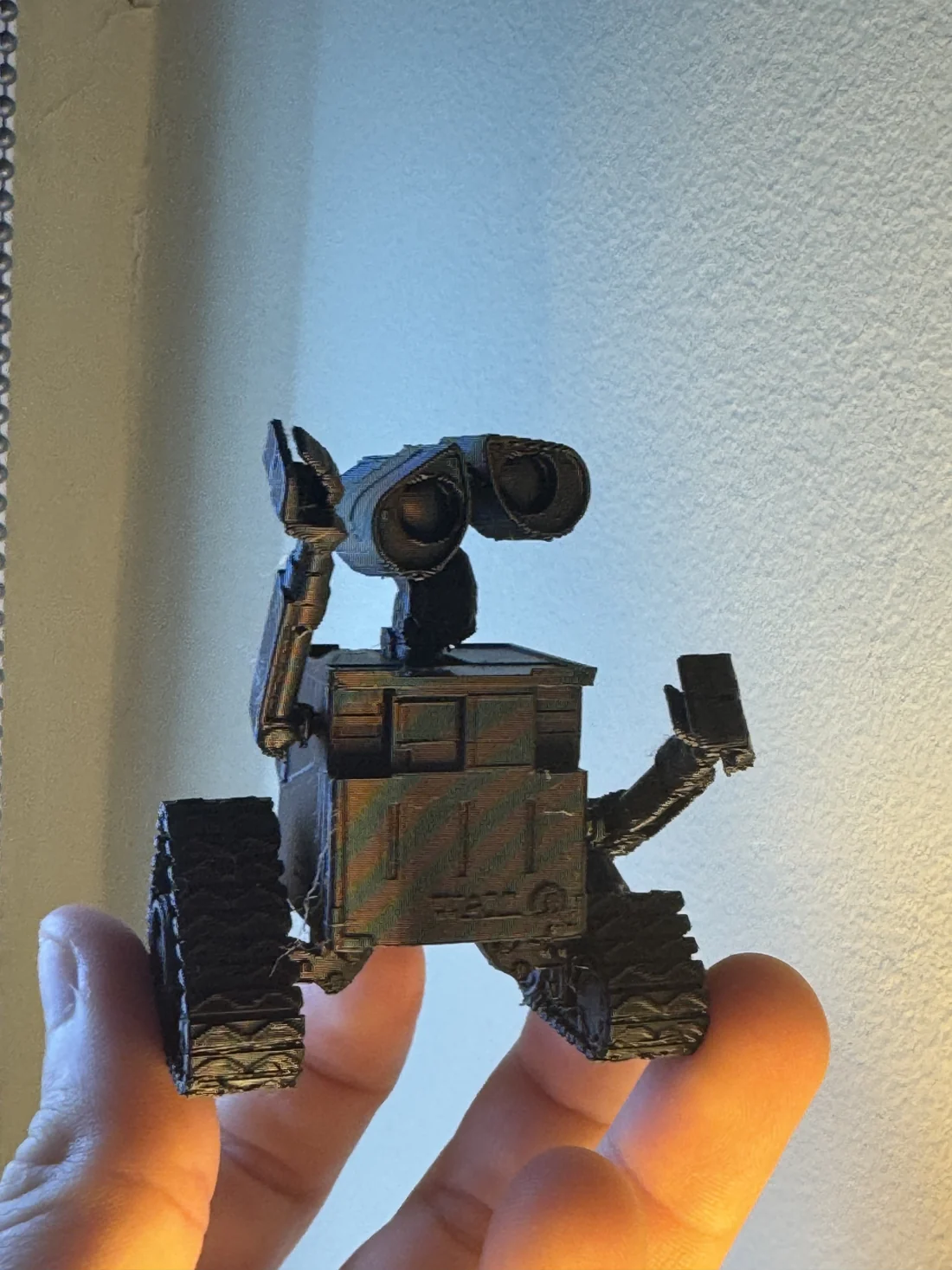
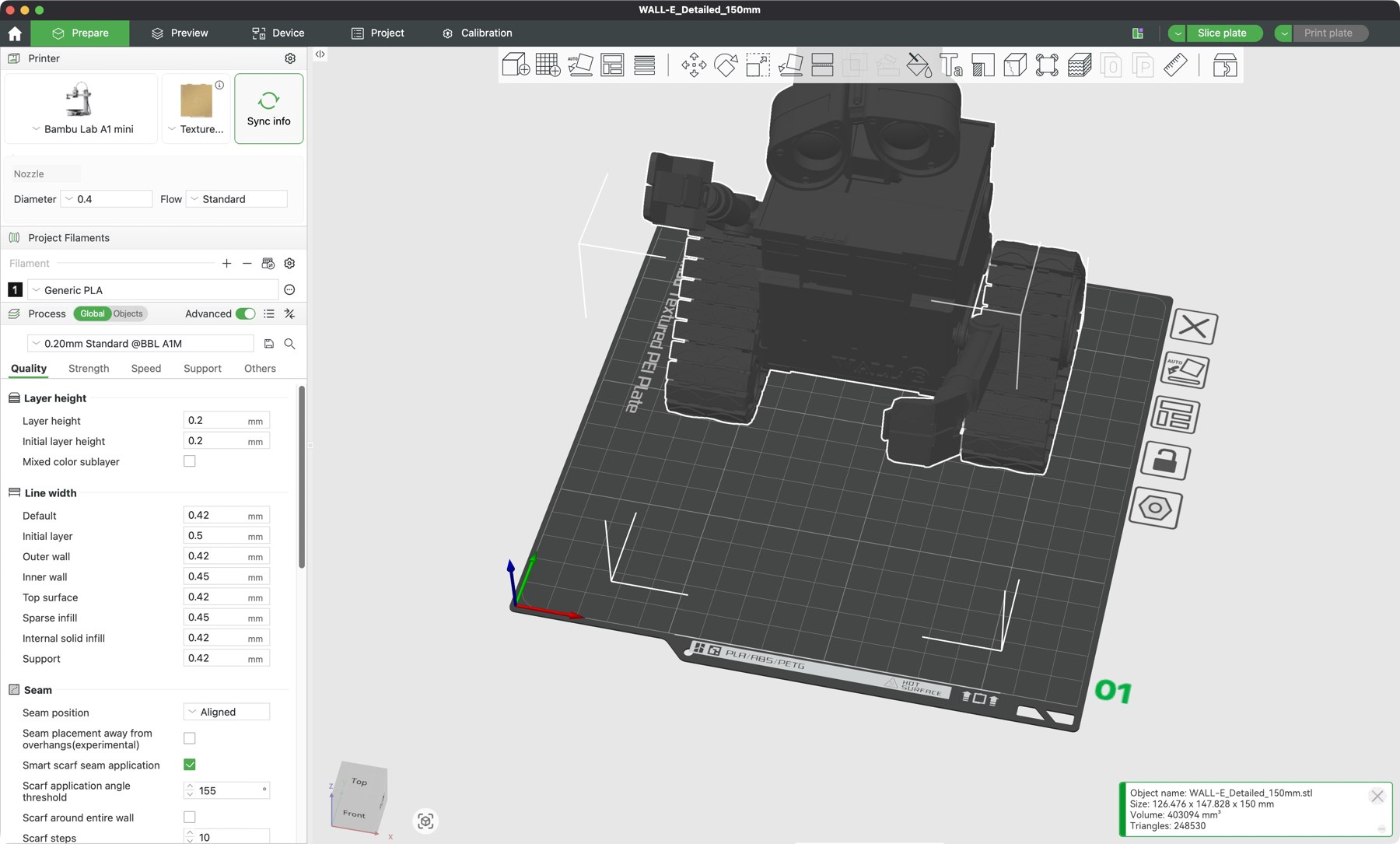
About the demonstration. The prompt-entry and STL-revision scenes are illustrative animations. The detailed model preview and Bambu Studio import use an existing Anycubic Community STL prepared and scaled for the example. They are not a newly generated response to the animated prompt. The physical-print photo and footage were recorded by me.
01Start with what it needs to do
“Make me a phone holder” leaves most of the design to guesswork. Which phone? With its case on? Portrait or landscape? What viewing angle, and where should the charging cable go?
The useful part of the prompt is often the detail you already know:
- A phone case: the exact model, measured dimensions, camera opening, buttons, charging port and material. Small fit errors matter here, so expect a test and revision.
- A phone holder: the phone’s width and thickness with its case, the viewing angle, base footprint and cable clearance.
- A vase: overall height, widest point, neck opening and the shape you want. If it must hold water, include that requirement and test the finished print.
- A cup holder: the cup’s diameter at different heights, its taper and handle clearance, plus where the holder will sit or attach.
- A custom clamp: the surface thickness, jaw opening, mounting position and what it needs to hold.
A photo helps explain the shape. Measurements define the fit. Neither replaces the other.
- 01 / BriefPurpose, references and dimensions
- 02 / ModelCreate, inspect and revise
- 03 / PrepareCheck scale, orient and slice
- 04 / TestPrint, measure and improve
02Write a brief you can check
For a character model, I would attach reference views and be explicit about scale, proportions and printable detail. For example:
Use three dimensions, with units. “10 cm³” describes a volume. If you mean a model that fits inside a 10 cm cube, write “100 × 100 × 100 mm maximum”. It can then retain its proportions without stretching to fill every axis.
“As detailed as possible” is a starting preference. The practical question is which details will survive at that size on your printer. Ask for the recognisable features first, then refine the thin or fragile areas.
03Get to an editable model
ChatGPT or Claude can help work through the brief and write modelling code. Whether the chat can run that code, inspect an uploaded mesh or return a downloadable STL depends on the tools available in that session.
For a simple, measured object, one route is to ask for OpenSCAD code with the important dimensions exposed as parameters. Open it in OpenSCAD, render it and export the STL. If your assistant has a compatible CAD or mesh tool, it may be able to do those steps in the same workflow.
An STL stores the surface mesh. Keeping the editable source makes later changes much easier: altering a cup opening is simpler when its diameter is a named value. A detailed character may need a different modelling approach from a geometric holder, and a single reference photo cannot specify every hidden surface.
Review the preview and request specific changes: widen the opening, lower the centre of gravity, thicken an arm or move a cable slot. Change one thing at a time so you can see what improved.
04Check it in Bambu Studio
Once you have an STL, import it into Bambu Studio or your printer’s slicer. Confirm the dimensions in millimetres, select the correct printer and material, and check the orientation, supports and layer preview before printing.
A model that looks convincing on screen can still have thin walls, unsupported features or the wrong size. For a part that must fit another object, a small test section can save printing the entire design again.
Print, try the fit and measure the result. Then feed that observation into the next revision: “The opening is 0.5 mm too tight; increase the internal diameter by 0.5 mm and keep the outside dimensions unchanged.” That is much more useful than “make it better”.
05Top tip: start with an existing STL
You do not always need to start from scratch. Find a suitable STL, check its licence and upload it to a chat that can inspect and edit mesh files. Ask it to confirm that it can read the geometry before requesting changes.
Be precise about what should change and what should stay fixed. An STL does not contain the original designer’s editable features, so a complex change may need rebuilding in CAD. If the chat cannot handle the file, use the original editable source where available, or ask for modelling instructions you can apply in a suitable tool.
06The useful habit behind the experiment
The pattern carries across to the AI workflows I build with businesses: describe the required output, provide the relevant context, make the constraints explicit and test the result where it will actually be used.
For this experiment, that final test is a physical object. Start with something small and personal - a holder, a spacer, an organiser - and see what changes when you can describe the exact thing you want to make.
The creative possibilities are wide. Clear measurements, the right modelling tools and a real-world check are what turn an idea into a useful print.
Sources & demonstration credits
- James Bell, Use AI to Create Your CAD Models - ChatGPT and Claude, Applied AI, 24 October 2026.
- OpenSCAD, official documentation and STL export from the command line.
- Bambu Lab, Bambu Studio, the slicer shown in the demonstration.
- OpenAI, Work with files. File previews and editing tools depend on the surface; this does not establish native STL editing support.
- Model shown in the preview and Bambu import: WALL-E robot by Anycubic Community, CC BY-NC 4.0. The demo model was uniformly scaled. WALL-E character and reference: Disney/Pixar. Physical-print photograph and footage: James Bell.